

Service Authorization gets the customer's approval on a repair before your team starts work. From an estimate, a service or the invoice page in Easy Truck Shop, you email the customer an e-signature request. They review the job online, type their name and sign. If the customer is at your counter, you record a verbal authorization instead.
The approval is stored on the work order with the customer's name and the time they signed, so the office can show who approved the work and for how much.
What it does
- Sends an e-signature request. The customer gets an email with a Review and Authorize button and signs online. They don't need an account or a password.
- Shows the whole job before they sign. The approval page lists the work, parts, labor, pricing, notes, attachments and totals.
- Records verbal approvals. When the customer approves in person, you mark the service as authorized verbally.
- Keeps a timestamped record. The signature, the signer's name and the time of signing are saved on the work order.
- Tracks every request. The estimate shows Authorization Pending and when the customer viewed the request, and Email History shows that the email was delivered.
- Asks again when the job changes. If prices or line items change after signing, you request a new authorization, and earlier signed records stay on file.
How to send an authorization request
- Build the estimate with the complaint, labor, parts and fees. The estimating page shows how.
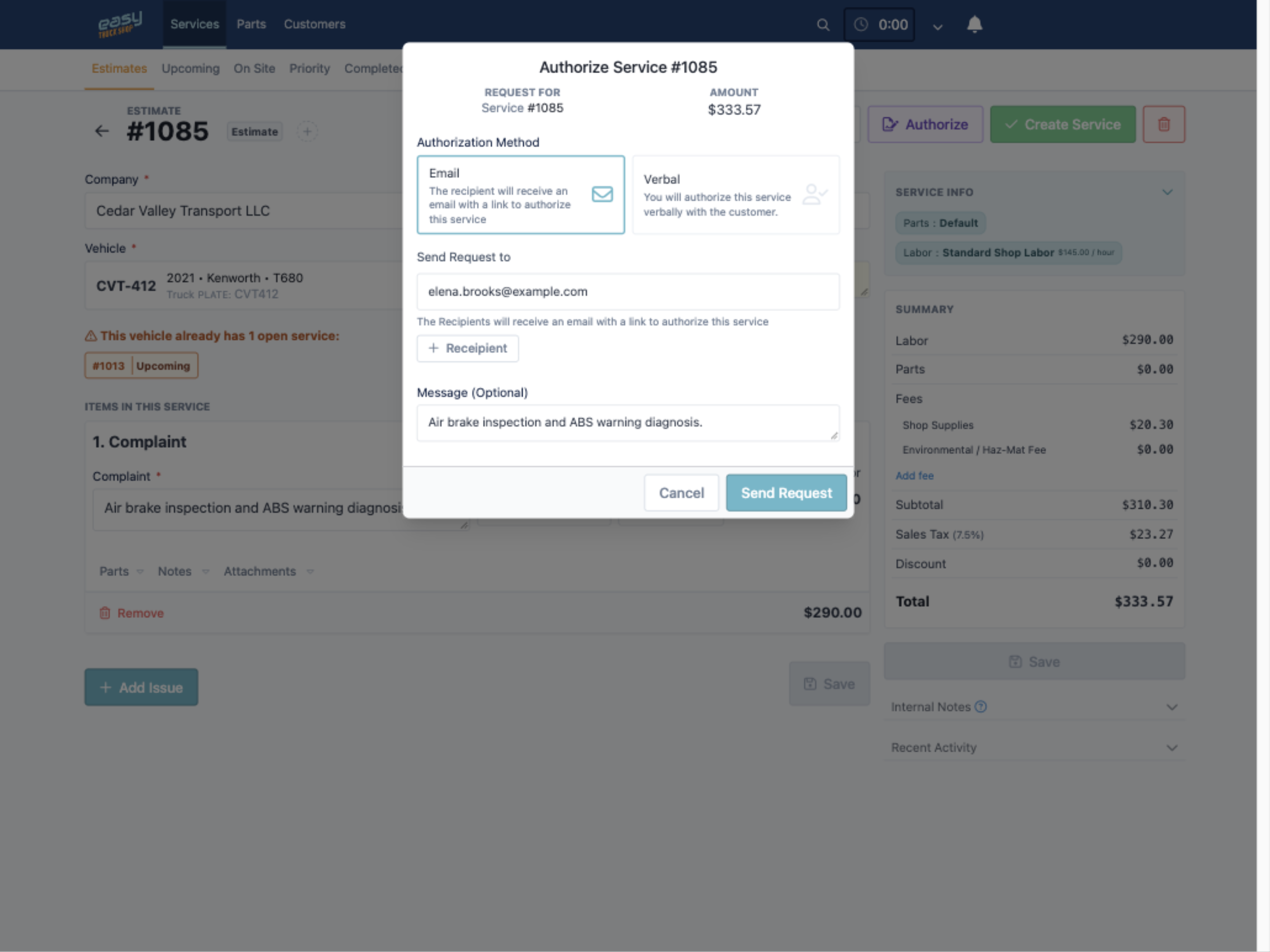
- Click Authorize, the purple icon on the estimate. It is also on each service and on the invoice page.
- Choose Email as the authorization method.
- Check the customer's email address, add an optional message and click Send Request.
- Check the side panel: the estimate now shows Authorization Pending, and Email History shows the email as delivered.
You don't have to email the estimate PDF first. The authorization request can go out on its own.
What the customer sees and signs
The request comes from notification@easytruckshop.com with the subject "E-Signature Request for Service Estimate" and the estimate number. It tells the customer their signature is needed and has a Review and Authorize button.
The button opens a page with the full job: the vehicle, work details, parts, labor and pricing, fees, tax and totals, plus notes and attachments when the estimate has them. Below the job are the shop's authorization terms. At the bottom, the customer types their name, signs in the signature box and clicks Authorize and Sign. They can then view and download the authorized service for their own records.

For a fleet account, the fleet manager can approve the job on a unit from their own office, and the approval stays attached to that unit's work order.
Email or verbal authorization
Send the email request when the person who approves the spending isn't at the shop: a fleet manager, an owner-operator on the road, or the customer's office. It leaves a signed copy on the work order.
Choose Verbal in the same Authorize window when the customer is with you and approves the estimate in person. The service is then marked as authorized verbally. For jobs where you want a signed copy on file, send the email request instead.
Track the status and find the signed copy
Open the estimate or the work order and check the side panel. The authorization panel shows where the request stands:
- Authorization Pending: the request was sent and is waiting for a signature.
- Viewed: the customer opened it, with the time.
- Authorized: the customer signed. The estimate is marked Authorized, and the Authorizations panel shows the approved amount, the date and the signer's name.
Below it, Email History shows whether the email was delivered and links to the message that was sent. It shows delivery only, so check the authorization status above it to see whether the customer signed.

Each signed authorization stays in the Authorizations panel with its amount, date and signer, and you can share it from there. The customer can download their signed copy from the approval page.
If the customer says nothing arrived, ask them to check spam for mail from notification@easytruckshop.com. Check the email address on their customer profile, confirm the send in Email History, and resend.
When the price or scope changes
Heavy-duty jobs grow. A brake inspection finds a cracked drum, or an ABS warning turns into a wiring repair. An authorization covers the work and the dollar amount the customer saw when they signed.
Until the customer signs, changes you make to the estimate show on the authorization request automatically. If you change prices or line items after they sign, the Review and Authorize button appears again, so you can send a new request for the updated job. Each resend is logged in Email History, and every signed version stays on file. You can show which amount was approved at each point.
Authorization request, estimate email and payment link
Customers can receive three different emails from your shop, and they do different jobs:
- Estimate email. Sent with Share on the estimate. It carries the estimate PDF with line items, labor, parts, fees, tax and totals. It is for information and has no approve button.
- Authorization request. Sent with Authorize. The customer reviews the job online and signs to approve the work.
- Payment link. Sent when you collect payment on the invoice. The customer signs again when paying, so ETS shows two authorizations and the customer gets two separate emails. See payment processing with Stripe.
Why approval before work matters in a truck shop
A signed approval answers the questions that come up after the truck leaves: who approved the repair, what was on the estimate, and what it cost at the time. That record helps when an invoice is questioned or a card payment is disputed. The article on how repair shops fight chargebacks covers disputes in detail.
Easy Truck Shop doesn't force a signed authorization before work starts. A simple shop rule, such as a signed authorization for every estimate above a set amount and for every added repair, gives the service writer a clear point to stop and ask.
Frequently Asked Questions
Does the customer need an Easy Truck Shop account to sign?
No. The link in the email opens the approval page directly. The customer types their name and signs.
Do I need a signed authorization before starting work?
No. Easy Truck Shop lets you proceed without one. Getting it before work starts gives you a documented record that the customer approved the service.
Can I send an authorization without emailing the estimate first?
Yes. The Authorize button works on the estimate whether or not you have emailed the estimate PDF.
What happens if I change the estimate after the customer signed?
The Review and Authorize button appears again, so you can request a new signature for the updated job. Earlier signed records stay on the work order.
Where do I find the customer's signature?
In the side panel of the estimate or work order, under Authorizations. Each entry shows the approved amount, the date and the signer's name, with a Share button.
Can I record an approval without sending an email?
Yes. Choose Verbal in the Authorize window when the customer approves in person.
Is the authorization the same as paying the invoice?
No. The authorization approves the work and the amount. Payment goes through a separate payment link, where the customer signs again.
Learn more
Step-by-step help is in the ETS help center: how customers approve services or estimates online and what the customer sees. To try it on a sample estimate, book a demo.