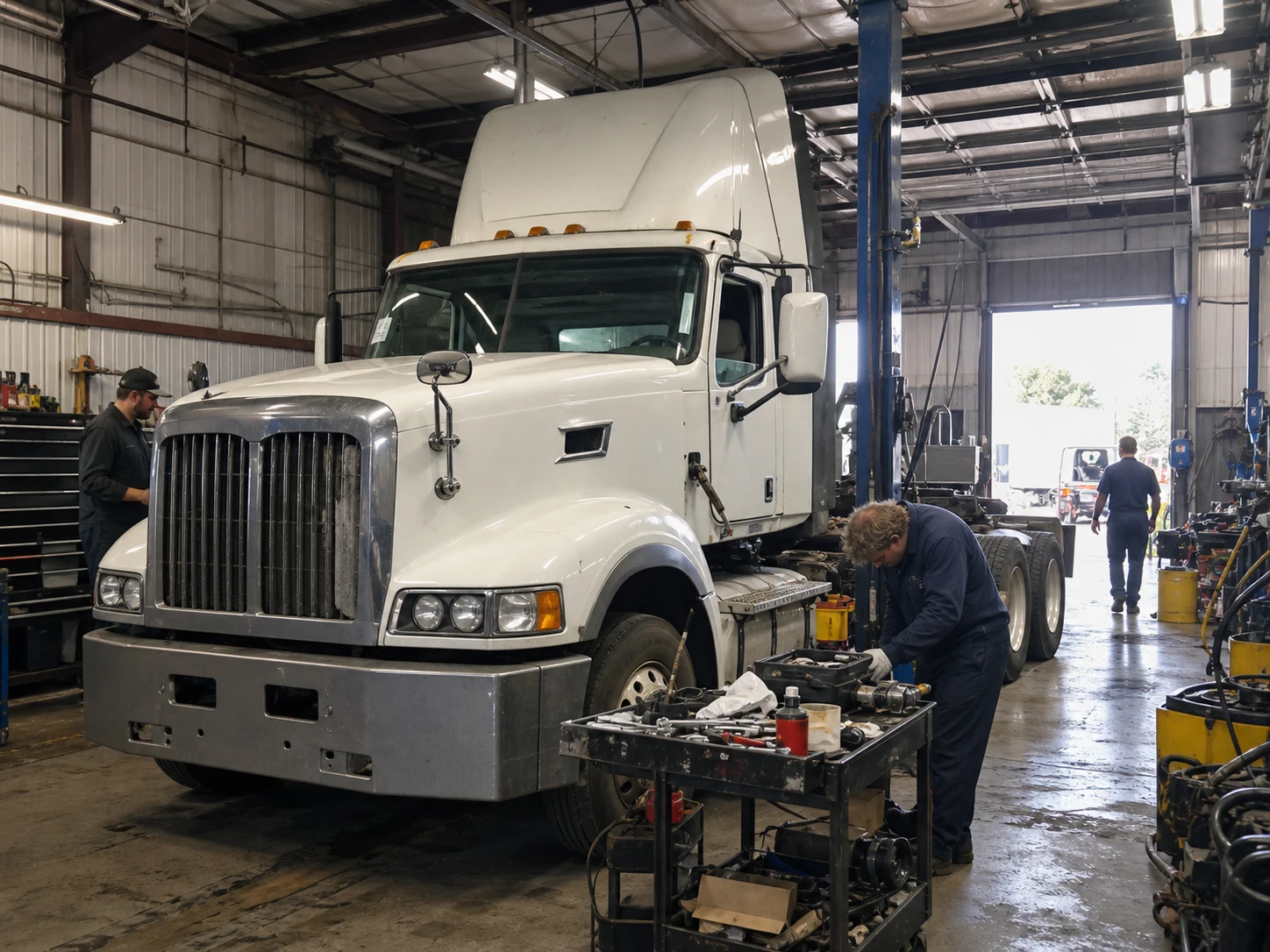
Easy Truck Shop connects to QuickBooks Online, so a truck repair shop can run work orders, parts and invoicing in ETS and keep its books in QuickBooks without typing every invoice twice. Finalized invoices, payments, credit memos and bills from received purchase orders go from ETS to QuickBooks. Payments applied in QuickBooks show in ETS too. QuickBooks Desktop is not supported.
This guide explains what each system should own, what syncs and when, how to connect and map accounts, how Stripe payouts reconcile, and what to check when the numbers don't match.
Why truck repair shops connect shop software to QuickBooks
QuickBooks is built for accounting: the chart of accounts, bills, deposits, bank reconciliation and the reports your accountant works from. It is not built to manage a heavy-duty repair: the unit and VIN, the complaint, technician time, parts pulled from stock, approvals and the next PM.
Without a connection, someone in the office rebuilds every finished job in QuickBooks. That is where labor lands in the wrong income account, a parts order never becomes a bill, a card payment is entered twice, or a fleet invoice is missing from the books at month end.
The point of the integration is simple: record the job once, in the shop system, and let the accounting entries follow from it.
What each system should own
The cleanest setups give each record one home. Work happens in Easy Truck Shop; accounting happens in QuickBooks Online.
| Area | Easy Truck Shop | QuickBooks Online |
|---|---|---|
| Customers and units | Customer, unit, VIN, odometer and service history | Customer record for billing; ETS creates it on the first sync if it is missing |
| Estimates and work orders | Built, approved and worked in ETS | Not sent; estimates and draft invoices stay in ETS |
| Invoices | Edited and finalized in ETS | Finalized invoice arrives with labor, parts revenue and COGS mapped |
| Payments | Recorded in ETS, including Stripe card payments | Applied to the matching invoice; payments applied in QuickBooks reflect in ETS |
| Parts purchasing | Purchase orders created and received in ETS | Receiving creates a bill, unless the bill switch is turned off |
| Tax rates | Selected on the invoice | Created in QuickBooks, then switched on in ETS by the ETS team |
| Reporting | Shop reports on sales, parts, inventory and technician time | Financial statements, bank reconciliation and your accountant's work |
The rule that saves the most trouble: edit invoices in Easy Truck Shop before you finalize them, not in QuickBooks afterwards. Changes made in QuickBooks can be overwritten or cause reconciliation problems.
What syncs from Easy Truck Shop to QuickBooks Online
According to the ETS help center, the integration sends:
- Finalized invoices, with labor revenue, parts revenue and cost of goods sold posted to the accounts you mapped.
- Payments recorded in ETS, applied to the matching invoice in QuickBooks. Payments applied in QuickBooks reflect in ETS as well.
- Credit memos against the customer.
- Bills for purchase orders when the parts are received.
- New customers. If a customer exists in ETS but not in QuickBooks, ETS creates it on the first sync.
Estimates, open invoices and draft invoices do not sync, and nothing is sent for a purchase order while it is still open.
Syncing is triggered by an action, finalizing an invoice or recording a payment, rather than by a scheduled batch. That gives the office a clear checkpoint: once an invoice is right, finalize it, and that is the version your books receive.
How to connect QuickBooks Online to Easy Truck Shop
Set up QuickBooks first, then connect. Most sync problems come from accounts, items or tax rates that do not exist yet.
- Prepare the chart of accounts. Make sure QuickBooks has the income accounts you want for labor and parts, a cost of goods sold account, and an expense or COGS account for parts you order. An account must exist in QuickBooks before ETS can map to it.
- Create products and services. Use the Service type for labor, Non-inventory for parts you do not track as inventory in QuickBooks, and Inventory only if you manage inventory inside QuickBooks.
- Create tax rates in QuickBooks. With QuickBooks connected, rates are created in QuickBooks Online and then switched on in ETS by the ETS team. A rate added only in ETS will stop the invoice from finalizing.
- Connect. In Easy Truck Shop, open Settings from the profile menu, go to Integrations, choose QuickBooks and click Connect to QuickBooks. Sign in to QuickBooks and authorize the connection.
- Map accounts. Under Settings, Integrations, QuickBooks, Account Mapping, match each ETS account type, such as labor revenue, parts revenue and COGS, to a QuickBooks account. Do this before you create your first invoice.
- Map purchase-order costs. Set the Ordered Parts account on the Expense Mapping screen, and map freight, fees and supplies as expense products (details below).
- Separate shops, if you have more than one. Create a Location for each shop in QuickBooks Online Plus or Advanced, then link it to the shop in ETS through the QB Department field. Each invoice then carries its shop's Location, so you can run Profit and Loss by Location.
- Test before going live. Finalize one invoice, record one payment and receive one purchase order, then check each one in QuickBooks before the whole team starts.
The ETS help center has step-by-step guides for connecting QuickBooks and setting up Locations for each shop. To see the flow on a sample job first, book an ETS demo.
Account mapping for labor, parts, COGS and purchase orders
Account mapping tells Easy Truck Shop which QuickBooks account receives each type of charge. ETS documentation calls incorrect or missing mapping the most common cause of sync discrepancies, so treat it as part of setup, not a detail to fix later.
Invoice side: labor, parts and COGS
When an invoice is finalized, labor revenue, parts revenue and cost of goods sold post to the accounts you chose on the Account Mapping screen. If labor and parts share one income account, you lose the split your accountant and your margin reports depend on. The truck repair shop invoicing guide covers how ETS builds those invoices.
Purchase-order side: Ordered Parts and expense products
Receiving a purchase order creates a bill in QuickBooks Online. Two settings decide where its lines go:
- Parts: every part on every purchase order posts to one Ordered Parts account, set under Settings, Integrations, QuickBooks, Expense Mapping.
- Everything else on the order: freight, fees, taxes and office supplies are expense products, set under Settings, Part Settings, Expense Products. Each one is mapped to its own QuickBooks account, so printer paper lands in office supplies, not in parts.
Expense, Other Expense and Cost of Goods Sold accounts can all be used. If you change a mapping, only orders received afterwards use the new account; bills already in QuickBooks keep the account they were sent with.
When you receive an order, the Create Bill in QuickBooks Online switch is on by default and the reference number becomes the bill number. A received order that reached QuickBooks shows Linked in its QuickBooks column. More on purchasing and receiving is in the truck parts inventory guide and the ETS article on where purchase-order expenses end up.
Stripe payments and QuickBooks deposits

Stripe and QuickBooks do different jobs. Stripe takes the card payment; QuickBooks keeps the books. When the shop is connected to QuickBooks, Easy Truck Shop sends each card payment taken on the terminal or through a payment link to QuickBooks as soon as it is taken. See the Stripe payment processing page for how payments work in ETS.
The part that confuses bookkeepers is the payout. Stripe pays several card payments out as one lump sum, minus its fees, a few days later, so the bank amount never matches a single invoice. The ETS help center recommends one bank deposit in QuickBooks per payout:
- In Stripe, open the payout and note which payments it covers and the total fee.
- In QuickBooks, choose Create, then Bank deposit, and tick those payments.
- Add the Stripe fee as one negative line to a Stripe Fees expense account.
- Check that the deposit total equals the amount that reached the bank, then match it in the bank feed.
Cash, check and Zelle payments are not part of Stripe payouts, so deposit them separately. The full walkthrough is in the ETS article on matching a Stripe payout to invoices in QuickBooks.
Why ETS and QuickBooks numbers don't match

When a report in Easy Truck Shop disagrees with QuickBooks, work through these causes first:
- The invoice is not finalized. Draft and open invoices do not sync.
- Mapping is missing or wrong. An Account not found error means an ETS account type has no QuickBooks account.
- The reports are not comparable. Check that both use the same date range and the same cash or accrual basis.
- Duplicate customers. A name that does not match an existing QuickBooks customer can create a duplicate. Merge duplicates in QuickBooks and select the right QuickBooks customer on the company profile in ETS (fix for the Invalid Reference Id error).
- The invoice was edited in QuickBooks. Make changes in ETS before finalizing instead.
- A tax rate was created in ETS. On a connected shop, rates must come from QuickBooks.
- A purchase order was received with the bill switch off. Enter the bill manually, or re-receive carefully and check QuickBooks for a duplicate.
- The connection dropped. QuickBooks authorization expires from time to time. Reconnect under Settings, Integrations, where the sync log also shows errors.
The ETS reporting tools are for running the shop: sales, parts, inventory and technician time. Financial statements and tax reporting still come from QuickBooks.
Questions to ask any shop software vendor about QuickBooks
If you are comparing repair shop software for QuickBooks, ask every vendor the same questions:
- Do you support QuickBooks Online, QuickBooks Desktop, or both?
- Which records sync: invoices, payments, credit memos, customers, purchase-order bills?
- Which direction does each record flow, and what triggers a sync?
- Where do I fix an invoice after it has synced?
- How are labor, parts revenue, COGS and ordered parts mapped?
- How do card payments, processor fees and payouts reach QuickBooks?
- Can invoices from several shops be separated in QuickBooks?
- Where do I see sync errors, and who helps fix them?
For Easy Truck Shop, the answers are in this article: QuickBooks Online only; invoices, payments, credit memos, customers and bills go to QuickBooks; payments come back; syncing happens when you finalize or record a payment.
See it on a sample job
The fastest way to judge the fit is to watch one job travel from work order to invoice to QuickBooks. Book an ETS demo and bring your chart of accounts and your bookkeeper's questions.
Frequently Asked Questions
Does Easy Truck Shop work with QuickBooks Desktop?
No. Easy Truck Shop connects to QuickBooks Online only. QuickBooks Desktop is not supported.
Is the Easy Truck Shop QuickBooks integration two-way?
Partly. Invoices, credit memos, customers and purchase-order bills go from Easy Truck Shop to QuickBooks. Payments sync both ways: payments recorded in ETS apply to the invoice in QuickBooks, and payments applied in QuickBooks reflect in ETS. Invoices should be edited in ETS, not in QuickBooks.
How often does Easy Truck Shop sync with QuickBooks?
There is no schedule to wait for. A sync is triggered when an invoice is finalized or a payment is recorded in Easy Truck Shop.
Do estimates and draft invoices sync to QuickBooks?
No. Estimates, open invoices and draft invoices stay in Easy Truck Shop. Only finalized invoices are sent.
Will Easy Truck Shop create customers in QuickBooks?
Yes. If a customer exists in ETS but not in QuickBooks, ETS creates it on the first sync. If the name does not match an existing QuickBooks customer exactly, a duplicate can appear, so check after the first sync and merge any duplicates.
Can I map ordered parts to a cost of goods sold account?
Yes. The Ordered Parts account and each expense product can use an Expense, Other Expense or Cost of Goods Sold account from your QuickBooks chart of accounts.
How do I record Stripe fees in QuickBooks?
Create one bank deposit per Stripe payout, tick the card payments it covers, and add the Stripe fee as a negative line to a Stripe Fees expense account. The deposit total should match the amount that reached your bank.
Can I keep several shop locations separate in QuickBooks?
Yes, with QuickBooks Online Plus or Advanced. Create a Location for each shop in QuickBooks and link it in ETS through the QB Department field. Every invoice ETS sends then carries its shop's Location.
Related Articles
Discover more articles on related topics to expand your knowledge.

Truck Repair Shop Invoicing Software for Heavy-Duty Shops

Truck Parts Inventory Software for Heavy-Duty Repair Shops